
Thanks for choosing Kobopress. Now, let’s set up your hosting account:
1. Create your account here: https://my.kobopress.com/basket-summary-login
2. Verify your email address. After verifying your email address, wait 15 to 30 minutes for us to manually validate your deal and add a hosting plan to your account.
3. Log in to your client area: https://my.kobopress.com/manage
4. Add a Hosting package to your domain and install WordPress. The following steps explains how:
a) Visit Client Area from your Kobopress control panel. You can directly login to, and access the Client Area here: https://my.kobopress.com/manage
If you can see the Hosting Icon 💼 under Manage Services tab, it means your one-year free web hosting package has been activated. Otherwise, wait a few moments or join our Facebook group here and let us know so we can activate it.
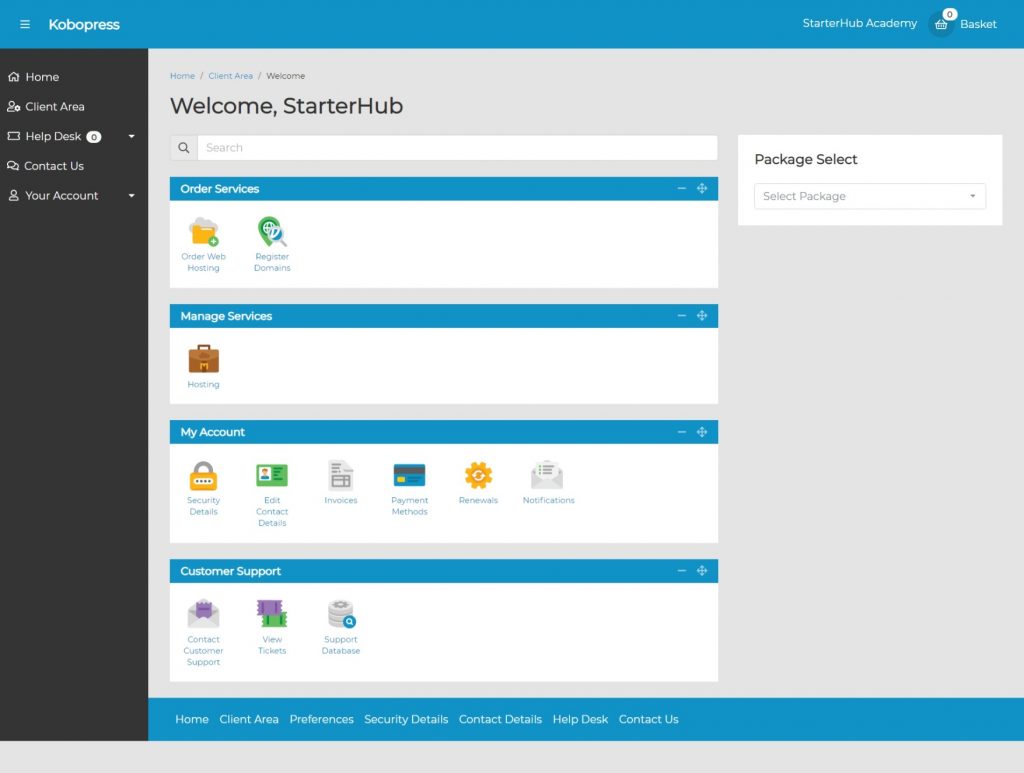
b) Under Manage Services, click Hosting and you should see a screen that looks like this:
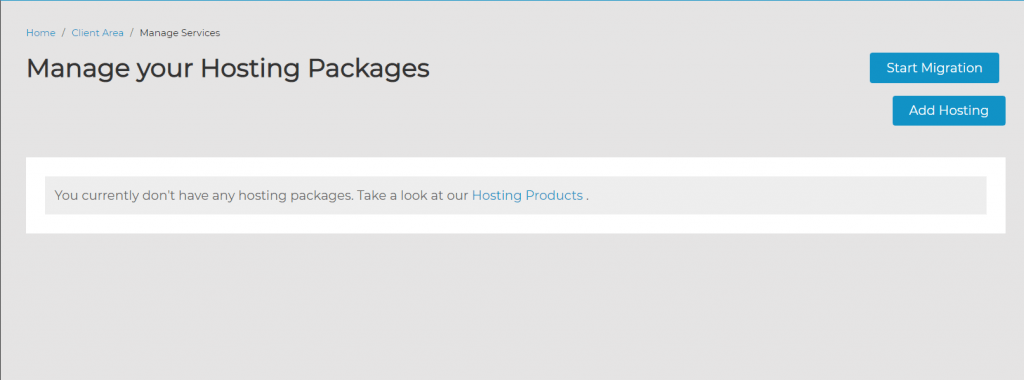
Don’t be terrified when you see this message: “You currently don’t have any hosting packages. Take a look at our Hosting Products .“
Your hosting packages will appear here when you add them.
c) Click Add Hosting button at the top right. The following popup will appear:
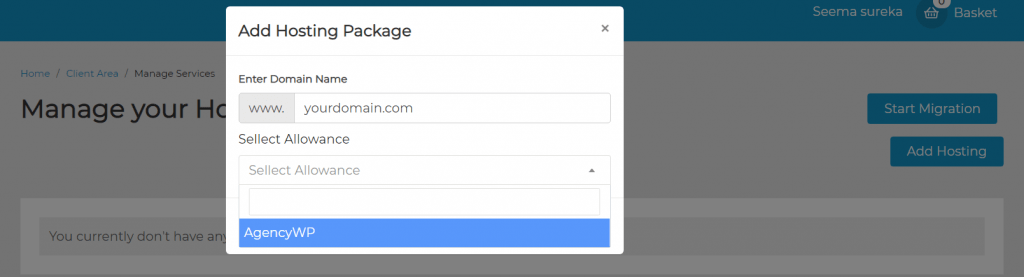
6. Enter the domain you want to add hosting to. This could be an existing domain that you own. However, for the purpose of this training, you will be using our FREE subdomain. We own the domain kudistack.com and have configured it such that you can automatically generate a free subdomain.
So, where it says Enter Domain Name, use a kudistack.com subdomain: e.g. yourname.kudistack.com, mysite.kudistack.com, mybiz.kudistack.com, anything.kudistack.com, etc. Entering a kudistack.com subdomain in the box will automatically configure it for you to install WordPress on and build your website.
7. Click Select Allowance and choose a hosting package you want to assign to the domain. Then click Add Hosting:
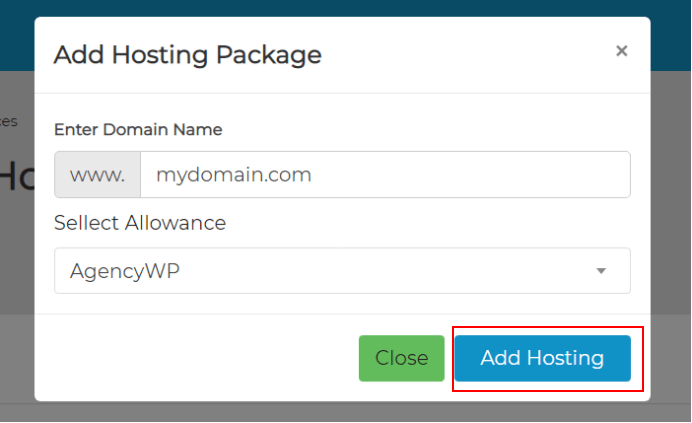
Give it a few seconds to configure, and you should see something similar to the following:
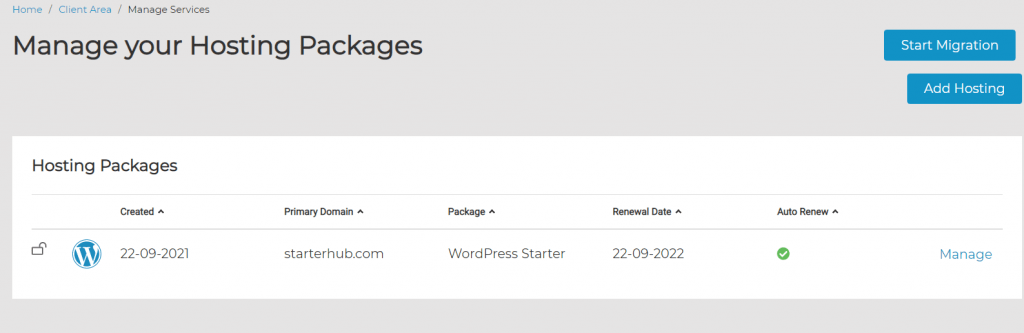
That’s it. You’ve successfully configured hosting package on your domain (subdomain); you can now install WordPress by clicking “Manage“ beside the hosting package.
But before then, unless your domain is registered with Kobopress, you should first point the domain to our servers:
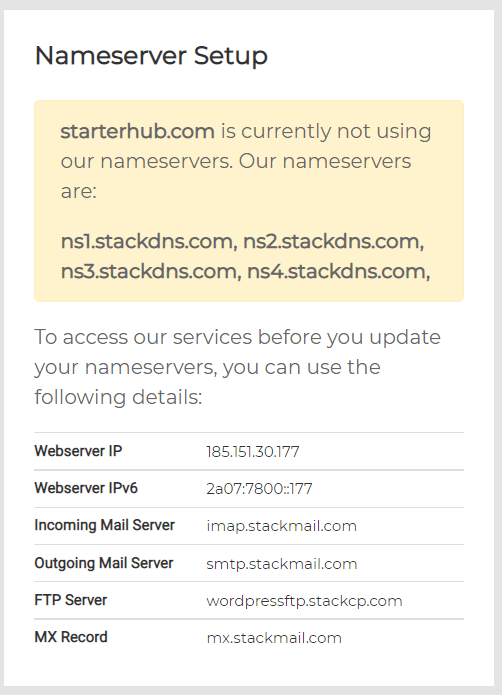
When you add a domain that is registered elsewhere, be sure to change the DNS settings to point to our servers: ns1.stackdns.com, ns2.stackdns.com, ns3.stackdns.com, ns4.stackdns.com.
Once this done, give the domain some time to propagate. Typically, this takes 30 minutes, but it can take up to 24 hours in some cases. You can always use a tool like What’sMyDNS to check your domain propagation status.