
To install WordPress, first be sure you’ve assigned a hosting package to the domain.
Once you’ve assigned hosting package to a domain, follow these steps to install WordPress on it:
1. Click on Client Area from your Kobopress control panel:
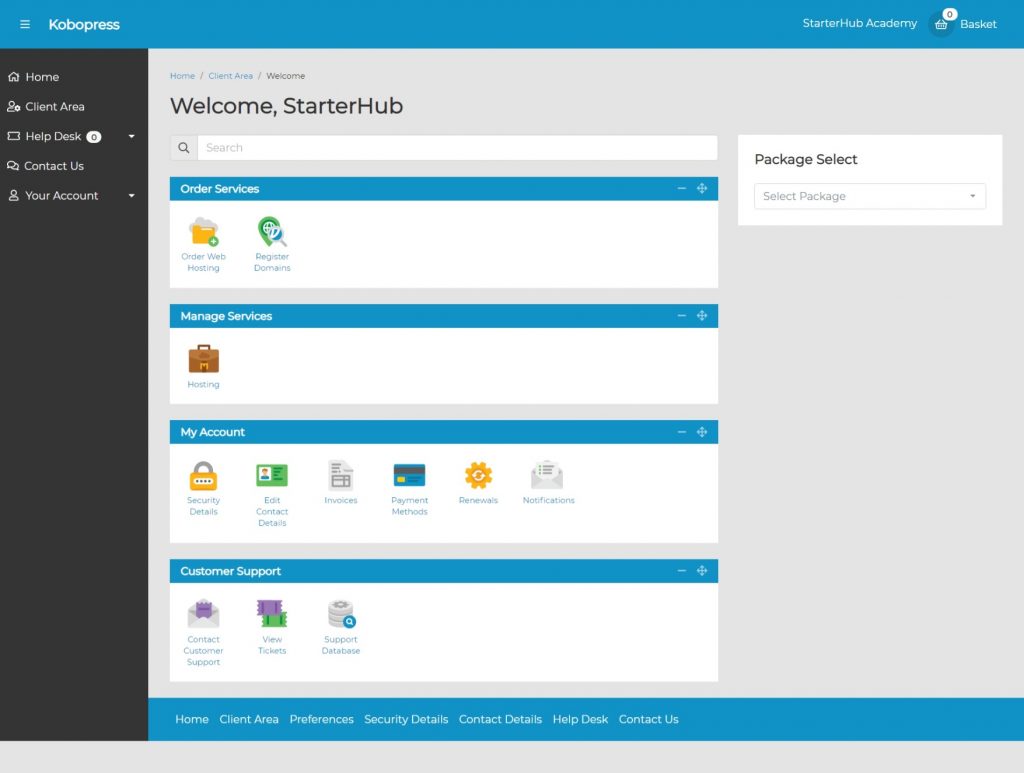
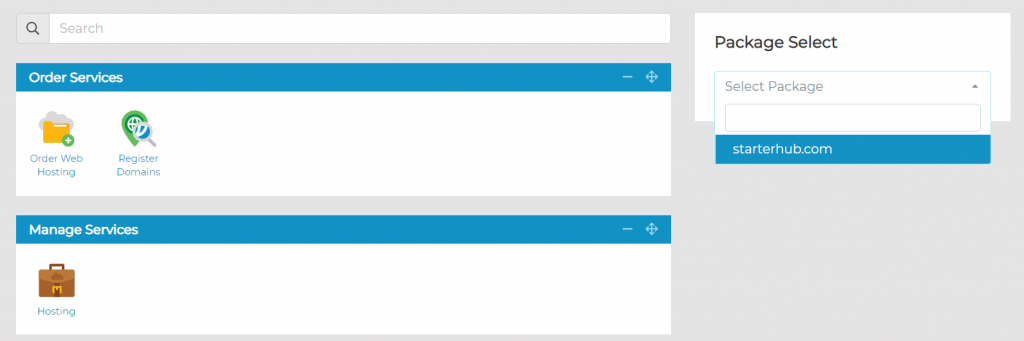
2. Click Hosting under Manage Services
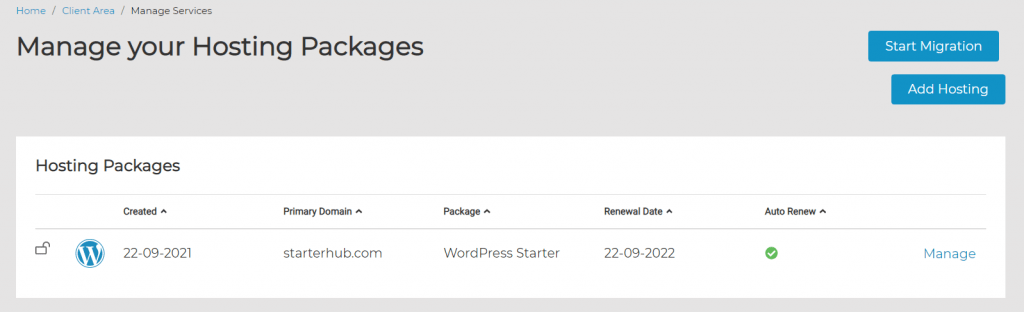
3. You should see the domain(s) you’ve assigned hosting package to; click Manage beside the domain you want to install WordPress on.
4. Click WordPress Install Wizard under WordPress Tools.
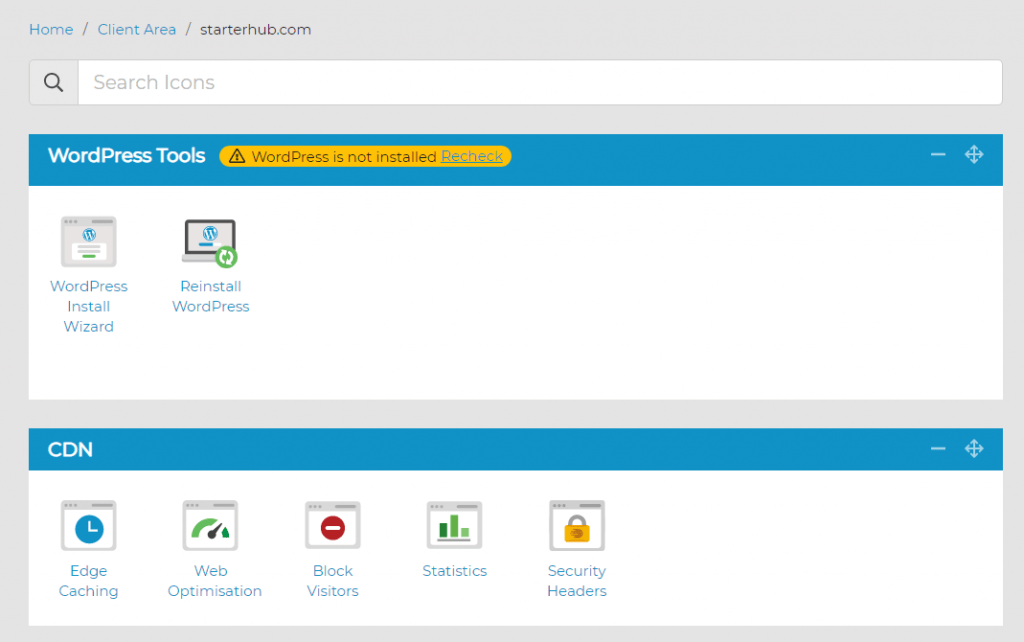
If you registered your domain with us, or you already pointed it to our servers ( ns1.stackdns.com, ns2.stackdns.com, ns3.stackdns.com, ns4.stackdns.com), you should be able to run your WordPress install on it:
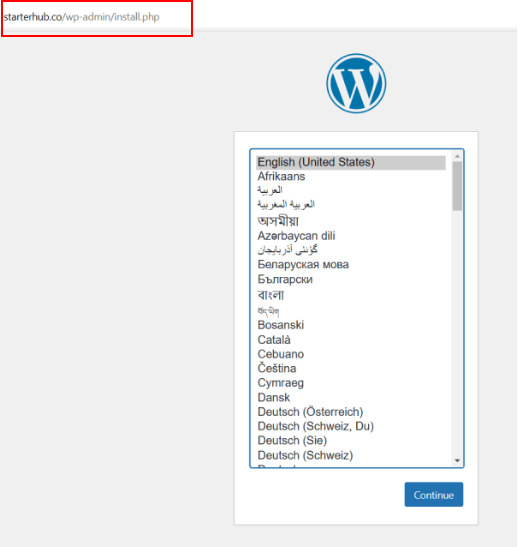
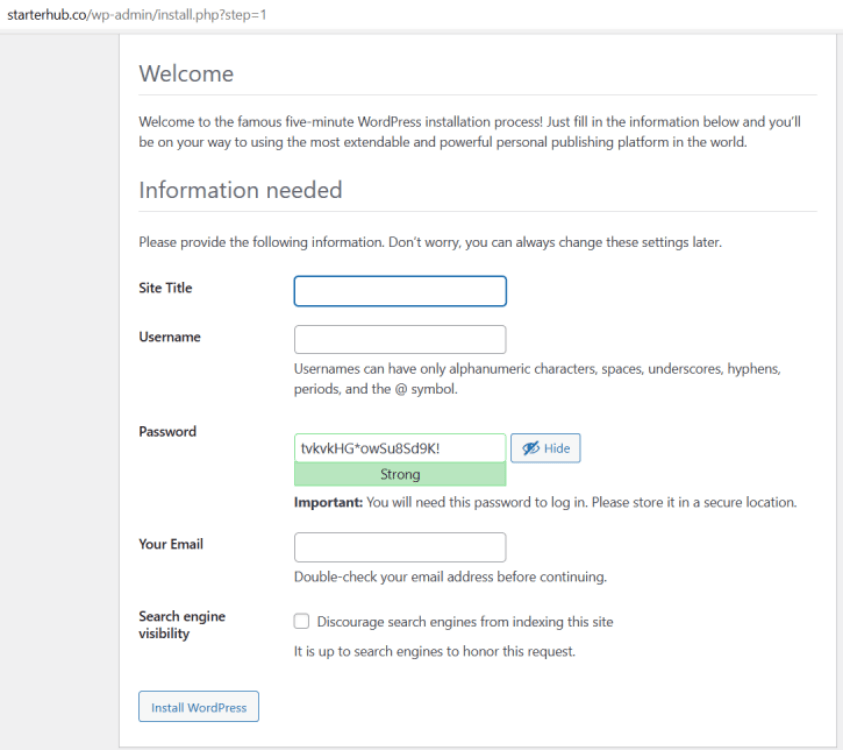
5. Follow the on-screen instructions to complete your WordPress installation:
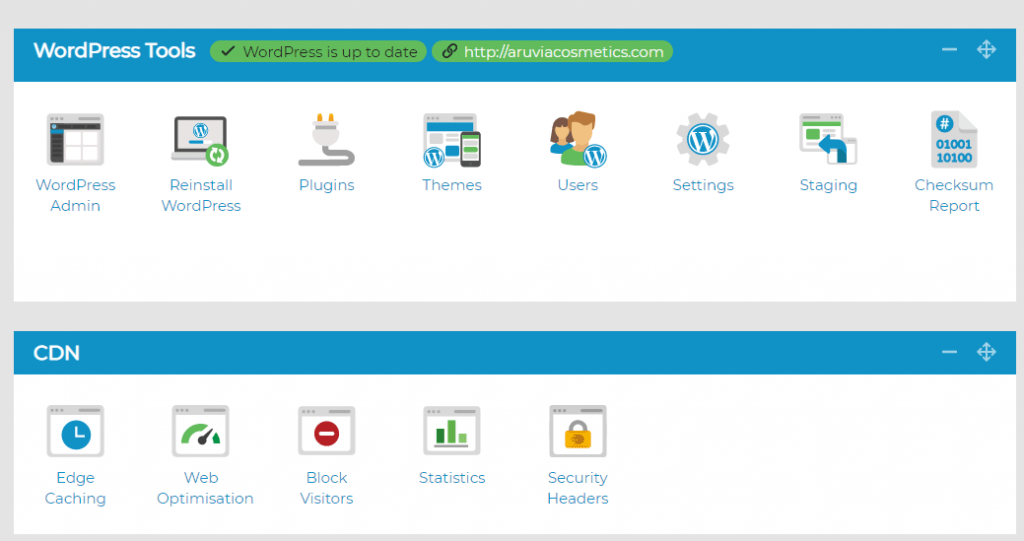
Once WordPress is installed on your domain, all WordPress Tools will become visible when you manage the package:
Note: If your domain is not pointing to our servers yet, you can still install WordPress, but it will be set up on a staging site with a URL structure like this: http://yourdomain-com.stackstaging.com/
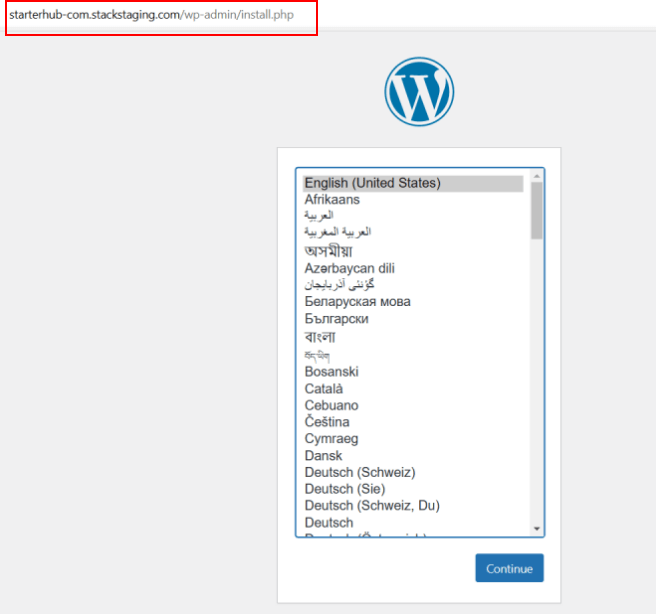
You can install WordPress on a staging site and connect your domain at anytime you’re ready to go live.

